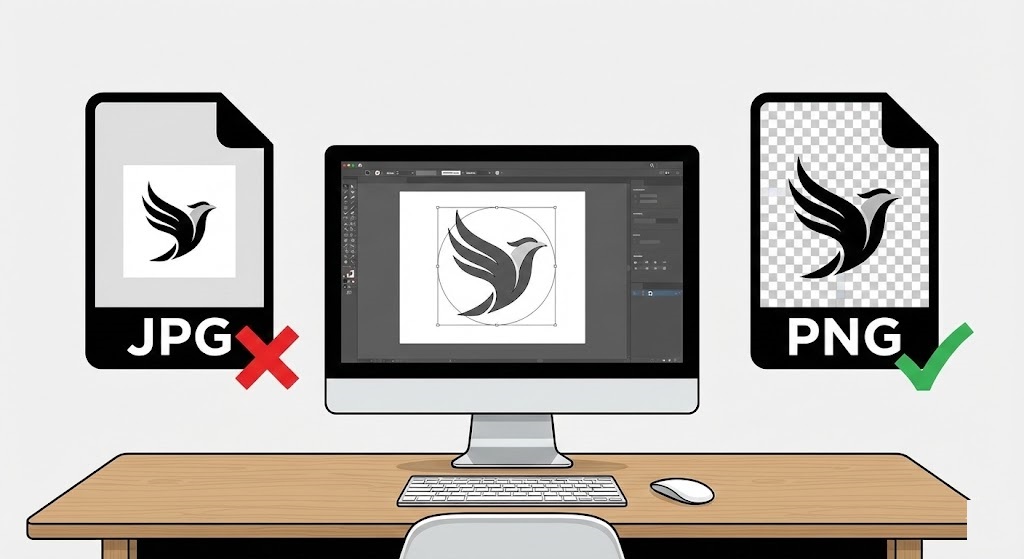
The “White Box” Problem
You have just received your company logo file. You try to upload it to your website’s dark header, or place it on a colorful PowerPoint slide. And there it is: The Ugly White Box.
Most logos are saved as JPEGs, which do not support transparency. This means your beautiful logo is trapped inside a white rectangle that clashes with your design. If you want to look professional, you need to make logo transparent.
In the past, fixing this required asking a designer or using complex software like Illustrator. Today, you can solve this problem in 5 seconds with rmvbg.net.
JPG vs. PNG: What You Need to Know
Understanding file formats is the first step to better branding.
- JPG (JPEG): Great for photos, but terrible for logos. It compresses the image (making it blurry) and forces a solid background (usually white).
- PNG (Portable Network Graphics): The gold standard for logos. It supports “Alpha Channels,” which means parts of the image can be invisible.
Our tool essentially converts your “flat” JPG into a “layered” PNG instantly.
How to Create a Transparent Logo Watermark
One of the most common uses for a transparent logo is watermarking. Photographers and creators use watermarks to protect their work. Here is how to create one for free:
Step 1: Upload Your Current Logo
Find your existing logo file. It doesn’t matter if it has a white, black, or colored background. Drag it into rmvbg.net.
Step 2: AI Edge Detection
Logos often have sharp edges and fine text. Standard background removers can make text look “jagged” or leave a “halo” (a thin white line) around the letters.
Our AI is optimized for graphic shapes. It detects the precise curve of your fonts and the geometry of your icon, ensuring the cutout is crisp and clean.
Step 3: Download and Apply
Download the HD PNG. You can now overlay this file on top of any photo, video, or document. The background will show through the empty spaces in your logo, just like a professional brand asset.
Fixing “Fuzzy” Low-Res Logos
Do you only have a small, pixelated version of your logo? Maybe you saved it from an email signature years ago?
While we can’t magically turn a tiny image into a vector, our tool is surprisingly good at salvaging low-quality files. By removing the background, you often sharpen the perception of the image. The contrast between your logo and the new background can make it pop, hiding some of the imperfections of the original file.
3 Places You MUST Use a Transparent Logo
- Website Navigation Bar: Most modern websites have colored or dynamic headers. A white box looks amateurish here.
- Business Cards: If you print on colored paper, you need a transparent file so the paper texture shows through.
- Email Signatures: Dark Mode in email apps (like Outlook or Gmail) will turn your white background into a glaring bright box. A transparent PNG adapts to Dark Mode automatically.
Conclusion: Polish Your Brand Identity
Your logo is the face of your business. Don’t let a file format limitation make you look sloppy.
Use rmvbg.net to create a library of transparent assets. Keep them on your phone or laptop so you are always ready to apply your brand to any background, anytime. It is the easiest design win you will get today.