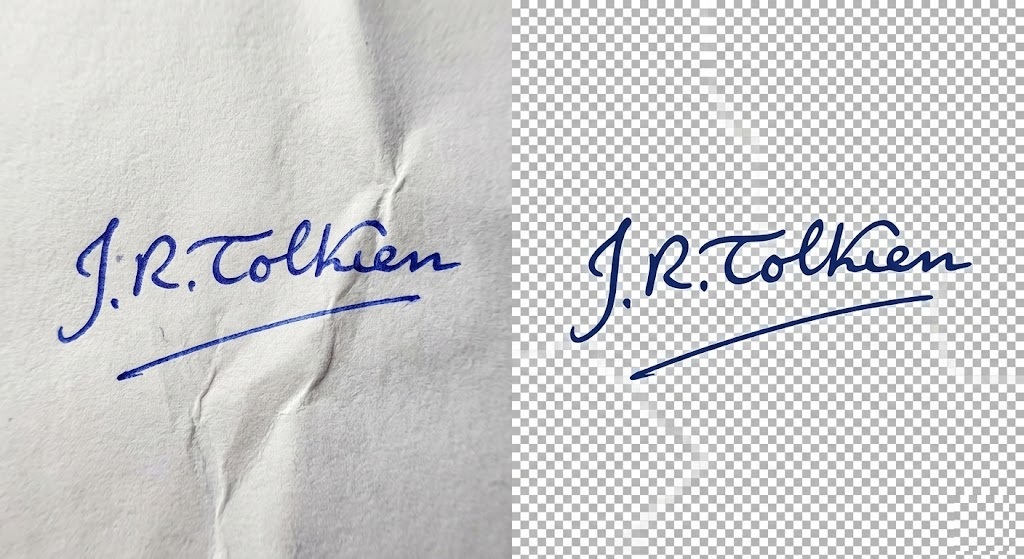
The “Grey Box” of Unprofessionalism
We have all received that email. A contract or an invoice arrives, and at the bottom, the sender has pasted a scanned image of their signature. But instead of looking like it was signed on the paper, it is a dark, pixelated image inside a grey or white box that blocks the text behind it.
Nothing screams “amateur” quite like a bad digital signature. In an era where remote work and digital contracts are the norm, having a clean, transparent signature file is as important as having a business card.
You don’t need to pay for expensive e-signing platforms like DocuSign just to sign a simple PDF. You can create your own professional asset by learning how to remove background from signature using rmvbg.net.
Why Scans and Photos Fail
When you take a photo of your signature with your phone, three things happen that ruin the image:
- Lighting Gradients: The paper is rarely pure white. It is usually a mix of light grey and shadow.
- Paper Texture: The camera picks up the grain of the paper.
- White Balance: Indoor lighting makes the “white” paper look yellow or blue.
If you paste this raw JPEG into a Word document or Google Doc, it clashes with the pure digital white background of the document. To look authentic, you need to isolate the ink from the paper.
The Old “Photoshop Hack” (And Why It’s Bad)
Graphic designers used to solve this by setting the signature image layer to “Multiply” blend mode. This makes the white pixels transparent.
The Problem: This only works if you are placing the signature on a white background. If you try to sign a document that has a colored background, a watermark, or a line rule, the “Multiply” trick fails—the grey paper box reappears. A true transparent PNG from rmvbg.net works on any background, dark or light.
Step-by-Step: Create Your “E-Signature” for Free
Follow this workflow to create a signature file you can use for the rest of your career.
Step 1: The Analog Sign
Get a clean sheet of white printer paper. Use a pen with a bold tip—a Sharpie, a rollerball, or a fountain pen works best. Ballpoint pens can be too thin.
Tip: Sign your name 3 or 4 times on the page so you can choose the best one later.
Step 2: The Capture
Take a photo with your smartphone.
Crucial: Do not use flash. Flash creates harsh reflections on the ink. Instead, go near a window and rely on natural, even light. Ensure the photo is in focus.
Step 3: The Extraction
Upload your photo to rmvbg.net. Our AI is trained to detect high-contrast lines. It will instantly strip away the paper texture, the shadows, and the yellow tint, leaving only the ink strokes.
Step 4: The Digital Stamp
Download the HD PNG. You now have a “stamp” of your signature.
How to Use Your New Transparent Signature
Now that you have the file, here is how to use it in common apps:
In Microsoft Word / Google Docs
- Go to Insert > Picture and select your signature PNG.
- Right-click the image and select Wrap Text > In Front of Text.
- This is the secret sauce. “In Front of Text” allows you to drag the signature over the signature line, just like real ink sits on top of paper.
In Adobe Acrobat (PDFs)
You can use the “Fill & Sign” tool to upload your image once. Acrobat will save it, allowing you to drag-and-drop your perfect, transparent signature onto any PDF in seconds.
In Email Signatures
Add a personal touch to your emails. Upload the transparent PNG to your Gmail or Outlook signature settings. Because it has no background, it will look great even if the recipient uses Dark Mode.
Security Note: Keep It Safe
Your digital signature is a legal tool. Treat this PNG file like a password. Do not upload it to public forums. Store it securely on your computer or encrypted cloud storage. While rmvbg.net deletes your upload after 60 minutes for privacy, you should always be mindful of where you keep your downloaded assets.
Conclusion
A messy signature scan suggests you don’t care about details. A crisp, transparent signature suggests competence and tech-savviness.
Don’t let a grey box ruin your contracts. Use rmvbg.net to remove background from signature scans instantly. It is the easiest way to look professional in a digital world.