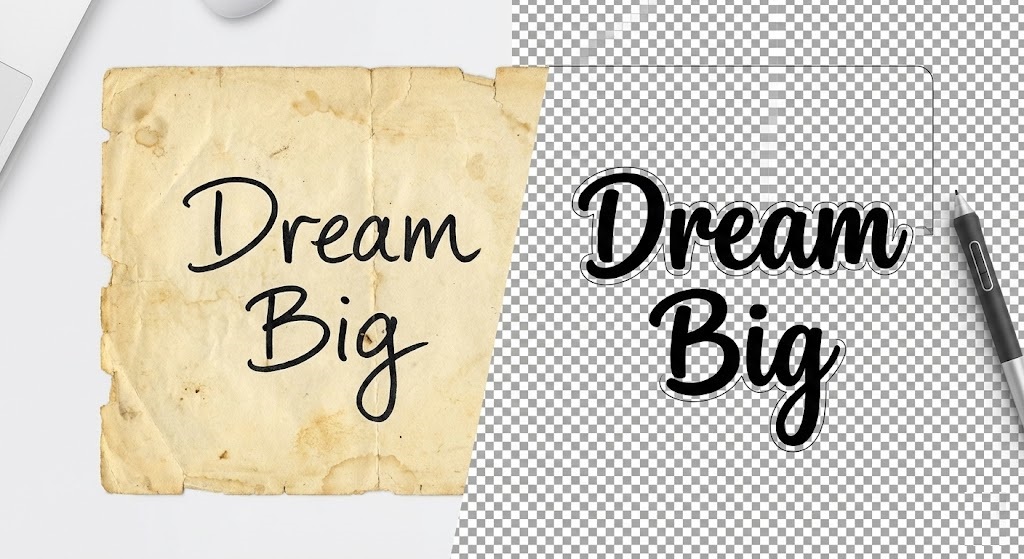
The “Screenshot” Problem
You find the perfect motivational quote on Instagram or Pinterest. The font is beautiful, the layout is perfect. You want to use it in your own design, but you only have a screenshot. When you try to place it over your photo, you are stuck with a giant, ugly box around the text.
Typography is one of the hardest things to edit manually. Selecting the inside of an “O” or the loop of a “g” takes forever with the Magic Wand tool. And if the text is on a textured background (like paper or a wall), manual selection is impossible.
You need a tool that understands the difference between a letter and the paper it is printed on. You need to remove background from text image using rmvbg.net.
Why Is Text So Hard to Cut Out?
Text is delicate. A slight mistake in the cutout ruins readability.
- Serifs: Those tiny “feet” on fonts like Times New Roman are often only 1 pixel wide. Bad background removers delete them.
- Kerning: The space between letters is crucial. If the background isn’t removed from these tiny gaps, the text looks “dirty.”
- Texture: Scanned documents or photos of street art have noise (grain) that confuses standard algorithms.
Our AI uses “Optical Character Recognition” (OCR) principles to identify shapes that look like letters, prioritizing their edges over the background noise.
Use Case: Digitizing Hand-Lettering
Calligraphy is a huge trend. Artists draw beautiful quotes on paper, scan them, and sell them as digital prints. But a raw scan looks unprofessional.
The Workflow:
1. Draw: Create your art with a black marker on white paper.
2. Scan/Photo: Capture a high-res image.
3. Extract: Upload to rmvbg.net. The AI removes the white paper texture.
4. Overlay: Download the transparent PNG. You can now place your hand-lettering over a photo of a coffee mug, a sunset, or a t-shirt mockup.
Use Case: “Stealing” Formatting (Legally)
Sometimes you don’t want the text itself, but the layout. Maybe you found a vintage logo or a cool Japanese kanji character online.
By removing the background, you turn a flat JPEG into a “stamp.” You can then import this stamp into Photoshop or Canva and use “Color Overlay” to change the text from black to gold, white, or neon pink. You have effectively vectorized a raster image in seconds.
Step-by-Step Guide
- Find Your Image: Ensure the text has decent contrast against the background (e.g., black text on grey paper is okay; dark grey text on black paper is hard).
- Upload to AI: Drag the file into rmvbg.net.
- Check the Loops: Look closely at letters like ‘a’, ‘e’, ‘o’. Our tool automatically punches out the centers.
- Download: Save your transparent typography asset.
Conclusion
Don’t re-type it. Extract it.
Use rmvbg.net to remove background from text image instantly. Whether you are digitizing your own handwriting or saving a vintage font, it is the fastest way to get clean, usable typography for your designs.